> ## Documentation Index
> Fetch the complete documentation index at: https://mw-docs.middleware.io/llms.txt
> Use this file to discover all available pages before exploring further.
# Docker
> Docker Infra Agent - Setup & Installation Docs | Middleware
This guide walks you through installing the Infrastructure Agent (Infra Agent) on a machine deployed through Docker. These instructions can also be found on the Installation page in the Middleware application.
The Docker Infra Agent is a containerized version of the Infra Agent. Upon installation, the Infra Agent collects host level details from host network mode and uses volume binding for reading logs.
# Install
### Step 1: Access Docker Installation
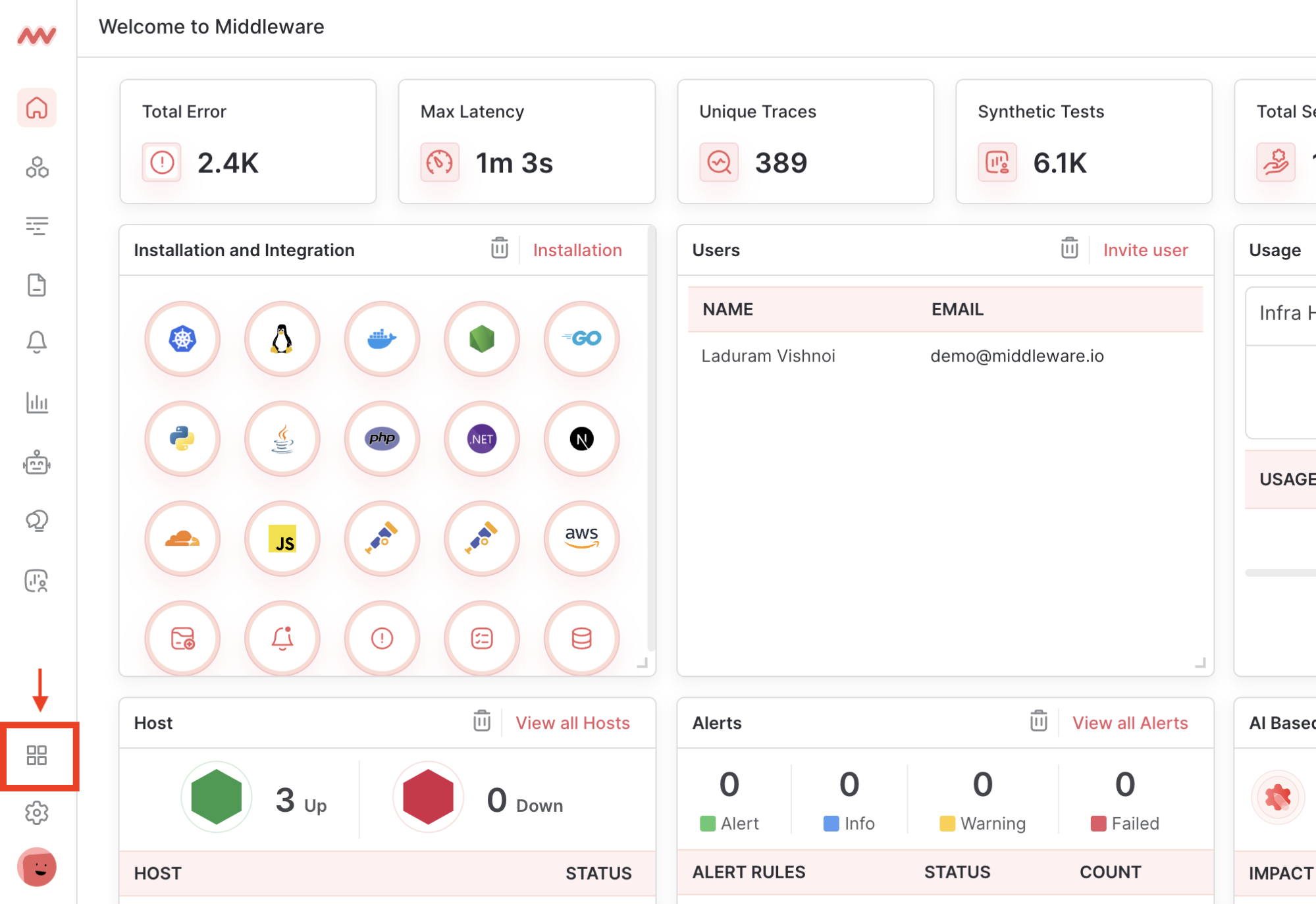
Log in to Middleware, navigate to the Installation Page in the bottom left corner and select Docker from the Infrastructure section
 ### Step 2: Run Docker Install Command
Copy and run the installation command. Copy the command directly from the Installation page to ensure your API key and UID are correct
```bash Shell theme={null}
MW_API_KEY= MW_TARGET=https://.middleware.io:443 bash -c "$(curl -L https://install.middleware.io/scripts/docker-install.sh)"
```
### Step 3: Add Host Tags \[Optional]
Create filterable custom tags by adding the `MW_HOST_TAGS` environment variable to the installation command as comma-separated key-value pairs. Use the tag `name` to create an alias for the host (e.g. production).
Check your host tags have been embedded by navigating to **Infrastructure** -> **Your Desired Host** -> **System Information**
```bash Shell theme={null}
MW_HOST_TAGS=key1:value1,key2:value2,... MW_API_KEY=...
```
### Step 4: Verify Installation
Verify the status of the Infra Agent. If status is `UP` or `Exited`, the installation was successful. If status is blank, installation was unsiccessful. Run the following command to verify the Infra Agent status:
```bash Shell theme={null}
docker ps -a --filter ancestor=ghcr.io/middleware-labs/mw-host-agent:master
```
### Step 5: Check Your Dashboard
Navigate to Middleware and ensure metrics are appearing in the Unified Dashboard . It can take up to a few minutes for metrics to appear. If metrics do not appear after this time head to our troubleshooting page for some common issues.
# Troubleshooting
Run only one Infra Agent per host. Multiple agents will cause unexpected behavior.
Once the Infra Agent is installed metrics should appear in the Middleware Application within a few minutes. If metrics do not appear, confirm that the machine has access to the internet, either directly or through a proxy, and that only one Infra Agent per container is running.
# Uninstall
To uninstall the Infra Agent use the following commands:
```bash Shell theme={null}
docker stop `docker ps -a -q --filter ancestor=ghcr.io/middleware-labs/mw-host-agent:master`
docker rm `docker ps -a -q --filter ancestor=ghcr.io/middleware-labs/mw-host-agent:master`
```
Need assistance or want to learn more about Middleware? Contact us at support\[at]middleware.io.
### Step 2: Run Docker Install Command
Copy and run the installation command. Copy the command directly from the Installation page to ensure your API key and UID are correct
```bash Shell theme={null}
MW_API_KEY= MW_TARGET=https://.middleware.io:443 bash -c "$(curl -L https://install.middleware.io/scripts/docker-install.sh)"
```
### Step 3: Add Host Tags \[Optional]
Create filterable custom tags by adding the `MW_HOST_TAGS` environment variable to the installation command as comma-separated key-value pairs. Use the tag `name` to create an alias for the host (e.g. production).
Check your host tags have been embedded by navigating to **Infrastructure** -> **Your Desired Host** -> **System Information**
```bash Shell theme={null}
MW_HOST_TAGS=key1:value1,key2:value2,... MW_API_KEY=...
```
### Step 4: Verify Installation
Verify the status of the Infra Agent. If status is `UP` or `Exited`, the installation was successful. If status is blank, installation was unsiccessful. Run the following command to verify the Infra Agent status:
```bash Shell theme={null}
docker ps -a --filter ancestor=ghcr.io/middleware-labs/mw-host-agent:master
```
### Step 5: Check Your Dashboard
Navigate to Middleware and ensure metrics are appearing in the Unified Dashboard . It can take up to a few minutes for metrics to appear. If metrics do not appear after this time head to our troubleshooting page for some common issues.
# Troubleshooting
Run only one Infra Agent per host. Multiple agents will cause unexpected behavior.
Once the Infra Agent is installed metrics should appear in the Middleware Application within a few minutes. If metrics do not appear, confirm that the machine has access to the internet, either directly or through a proxy, and that only one Infra Agent per container is running.
# Uninstall
To uninstall the Infra Agent use the following commands:
```bash Shell theme={null}
docker stop `docker ps -a -q --filter ancestor=ghcr.io/middleware-labs/mw-host-agent:master`
docker rm `docker ps -a -q --filter ancestor=ghcr.io/middleware-labs/mw-host-agent:master`
```
Need assistance or want to learn more about Middleware? Contact us at support\[at]middleware.io.