> ## Documentation Index
> Fetch the complete documentation index at: https://mw-docs.middleware.io/llms.txt
> Use this file to discover all available pages before exploring further.
# Linux
> Linux Infra Agent - Setup & Installation Docs | Middleware
This guide walks you through installing the Infrastructure Agent (Infra Agent) on a Linux machine. These instructions can also be found on the Installation page in the Middleware application.
We offer two install scripts based on your operating system. Please note that not all Linux machines are supported. A list of supported machines can be found under Prerequisites.
# Prerequisites
Ubuntu `v18.04` or above
For AWS EC2 instances, Amazon Linux, Ubuntu, or Debian is required. For AWS instances using Red Hat, please install the [Docker Infra Agent](https://docs.middleware.io/docs/agent-installation/docker)
MacOS Linux is not supported
# Install
### Step 1: Access Linux Installation
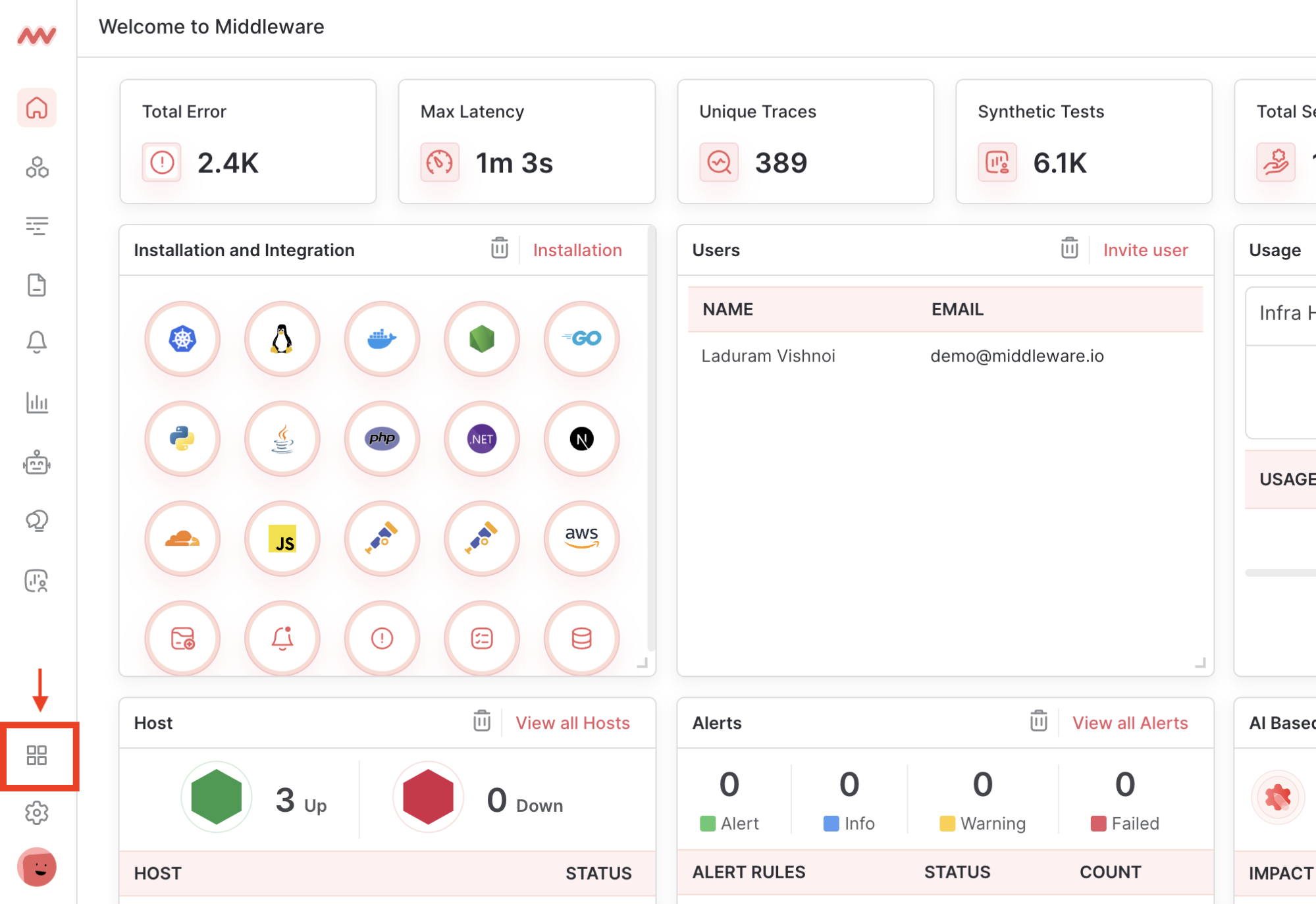
Log in to Middleware, navigate to the Installation Page in the bottom left corner and select Linux-Based from the Infrastructure section
 ### Step 2: Run Linux Install Command
Copy the appropriate installation command based on your machine’s operating system. Copying the command directly from the Installation page ensures your API key and UID are inserted accurately.
`DEB`: Compatible with Debian or Debian-based operating systems. For AWS instances this includes Ubuntu and Debian.
```bash Shell theme={null}
MW_API_KEY= MW_TARGET=https://.middleware.io:443 bash -c "$(curl -L https://install.middleware.io/scripts/deb-install.sh)"
```
`RPM`: Compatible with Red Hat Package Manager and operating systems like Red Hat or CentOS. Use this for AWS instances using Amazon Linux.
```bash Shell theme={null}
MW_API_KEY=xxxxxxxxxx MW_TARGET=https://.middleware.io:443 bash -c "$(curl https://install.middleware.io/scripts/rpm-install.sh)"
```
### Step 3: Add Host Tags \[Optional]
Create filterable custom tags by adding the `MW_HOST_TAGS` environment variable to the installation command as comma-separated key-value pairs. Use the tag `name` to create an alias for the host (e.g. production).
Check your host tags have been embedded by navigating to **Infrastructure** -> **Your Desired Host** -> **System Information**
```bash Shell theme={null}
MW_HOST_TAGS=key1:value1,key2:value2,... MW_API_KEY=...
```
### Step 4: Verify Installation
Run the following command to verify the status of the Infra Agent:
```bash Shell theme={null}
sudo systemctl status mw-agent
```
If your Infra Agent is older than `v1.6.4`, use the below command to check the installation status.
```bash Shell theme={null}
sudo systemctl status mwservice
```
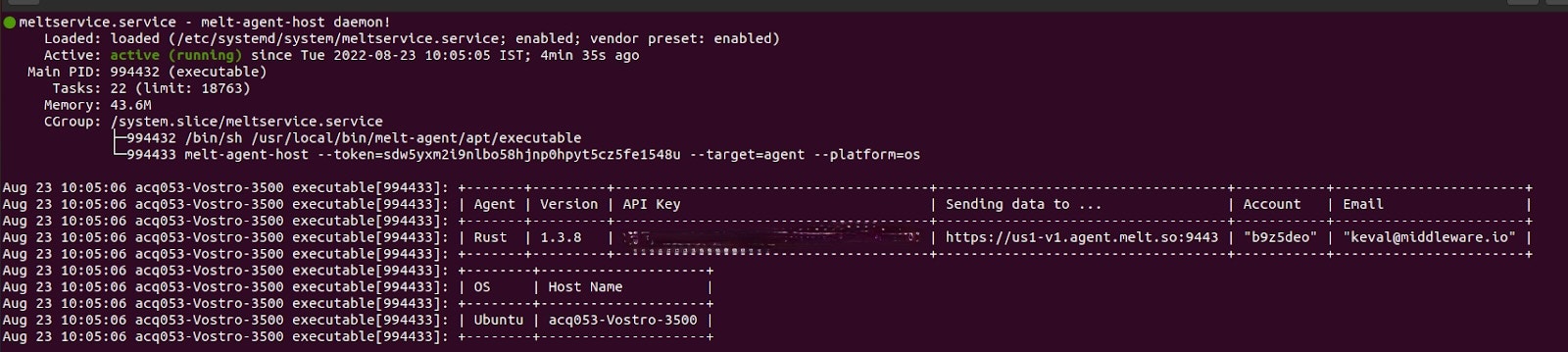
A successful installation will return the following Infra Agent Status report:
### Step 2: Run Linux Install Command
Copy the appropriate installation command based on your machine’s operating system. Copying the command directly from the Installation page ensures your API key and UID are inserted accurately.
`DEB`: Compatible with Debian or Debian-based operating systems. For AWS instances this includes Ubuntu and Debian.
```bash Shell theme={null}
MW_API_KEY= MW_TARGET=https://.middleware.io:443 bash -c "$(curl -L https://install.middleware.io/scripts/deb-install.sh)"
```
`RPM`: Compatible with Red Hat Package Manager and operating systems like Red Hat or CentOS. Use this for AWS instances using Amazon Linux.
```bash Shell theme={null}
MW_API_KEY=xxxxxxxxxx MW_TARGET=https://.middleware.io:443 bash -c "$(curl https://install.middleware.io/scripts/rpm-install.sh)"
```
### Step 3: Add Host Tags \[Optional]
Create filterable custom tags by adding the `MW_HOST_TAGS` environment variable to the installation command as comma-separated key-value pairs. Use the tag `name` to create an alias for the host (e.g. production).
Check your host tags have been embedded by navigating to **Infrastructure** -> **Your Desired Host** -> **System Information**
```bash Shell theme={null}
MW_HOST_TAGS=key1:value1,key2:value2,... MW_API_KEY=...
```
### Step 4: Verify Installation
Run the following command to verify the status of the Infra Agent:
```bash Shell theme={null}
sudo systemctl status mw-agent
```
If your Infra Agent is older than `v1.6.4`, use the below command to check the installation status.
```bash Shell theme={null}
sudo systemctl status mwservice
```
A successful installation will return the following Infra Agent Status report:
 # Troubleshooting
Run only one Infra Agent per node per host. Multiple agents will cause unexpected behavior.
Once the Infra Agent is installed metrics should begin appearing in the Middleware application within a few minutes. If metrics do not appear, confirm that the machine has access to the internet, either directly or through a proxy, and that only one Infra Agent is running per node.
# Uninstall
To uninstall the MW agent, use one of the following commands:
```bash Shell theme={null}
bash -c "$(curl -L https://install.middleware.io/scripts/deb-uninstall.sh)"
```
```bash Shell theme={null}
bash -c "$(curl -L https://install.middleware.io/scripts/rpm-uninstall.sh)"
```
Need assistance or want to learn more about Middleware? Contact us at support\[at]middleware.io.
# Troubleshooting
Run only one Infra Agent per node per host. Multiple agents will cause unexpected behavior.
Once the Infra Agent is installed metrics should begin appearing in the Middleware application within a few minutes. If metrics do not appear, confirm that the machine has access to the internet, either directly or through a proxy, and that only one Infra Agent is running per node.
# Uninstall
To uninstall the MW agent, use one of the following commands:
```bash Shell theme={null}
bash -c "$(curl -L https://install.middleware.io/scripts/deb-uninstall.sh)"
```
```bash Shell theme={null}
bash -c "$(curl -L https://install.middleware.io/scripts/rpm-uninstall.sh)"
```
Need assistance or want to learn more about Middleware? Contact us at support\[at]middleware.io.