> ## Documentation Index
> Fetch the complete documentation index at: https://mw-docs.middleware.io/llms.txt
> Use this file to discover all available pages before exploring further.
# Windows
> Windows Infra Agent - Setup & Installation Docs | Middleware
This guide walks you through installing the Infrastructure Agent (Infra Agent) on a Microsoft Windows machine. These instructions can also be found on the Installation page in your [Middleware Account](https://app.middleware.io/installation#infrastructures/windows).
# Prerequisites
Microsoft `Windows v10` or above
For Microsoft Windows Server instances, `Windows Server 2016` and above
Microsoft `Windows 64-bit`
# Install
### Step 1: Download Infra Agent Installer
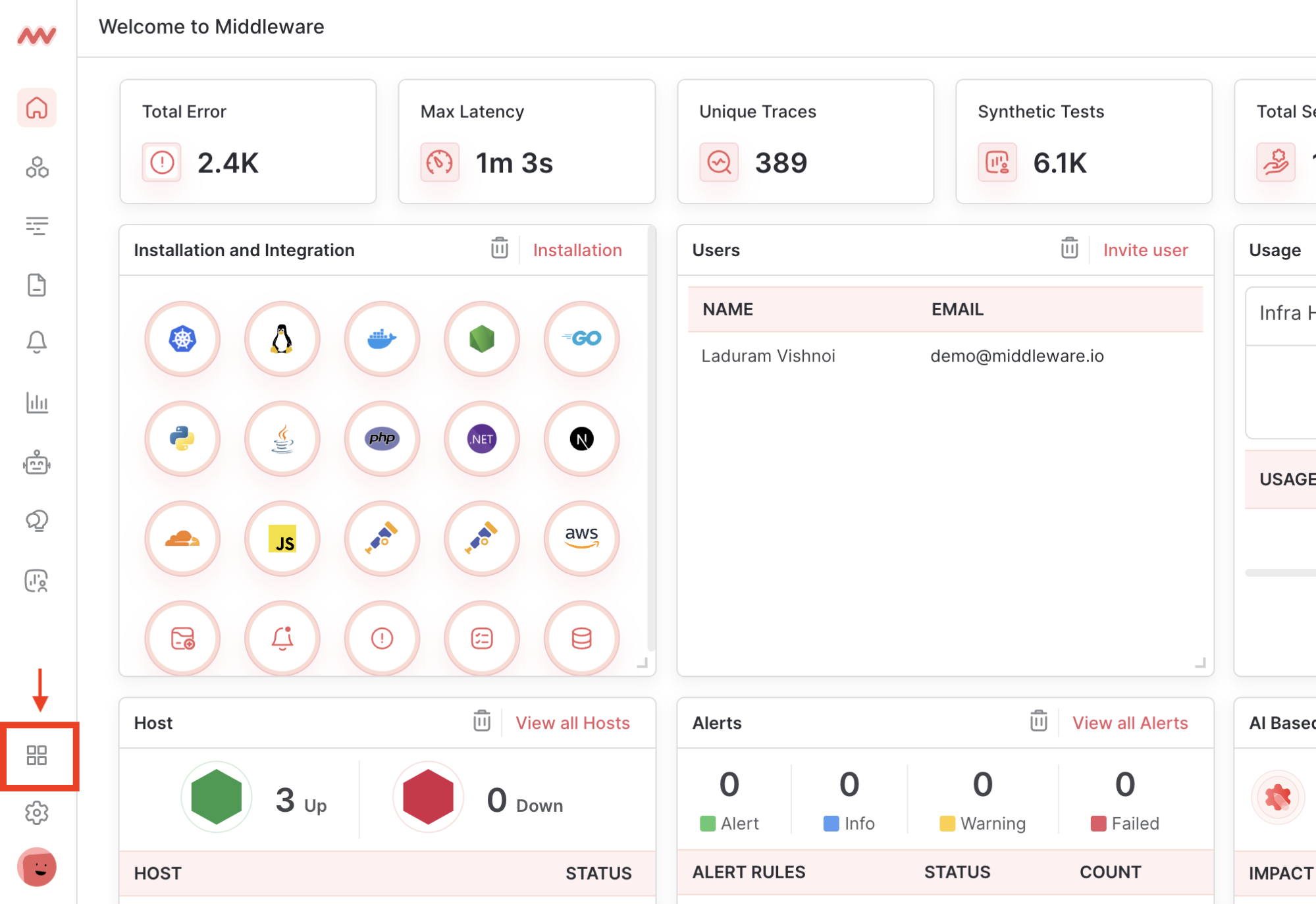
Log in to Middleware, navigate to the Installation Page in the bottom left corner and select Windows from the Infrastructure section
Download the Infra Agent [Installer](https://github.com/middleware-labs/mw-agent/releases)
 ### Step 2: Run & Complete Install Wizard
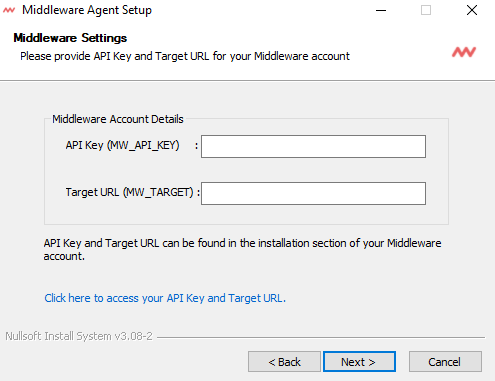
Right-click the Installer, select `Run as administrator`, and complete the Install Wizard.
Ensure you have your MW API Key & MW Target URL. Access them in your [MW Account](https://app.middleware.io/installation#infrastructures/windows)
### Step 2: Run & Complete Install Wizard
Right-click the Installer, select `Run as administrator`, and complete the Install Wizard.
Ensure you have your MW API Key & MW Target URL. Access them in your [MW Account](https://app.middleware.io/installation#infrastructures/windows)
 ### Step 3: Verify Installation
Verify the Infra Agent has been successfully installed with one of the following methods:
#### Windows Service Manager
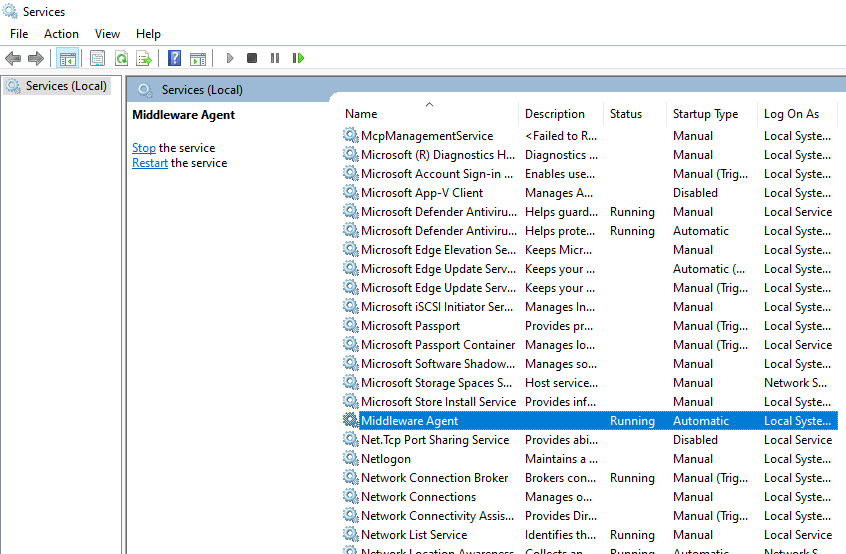
Search for the `Middleware Agent` in your Windows Service Manager.
The `Middleware Agent` should be in `Running` status.
### Step 3: Verify Installation
Verify the Infra Agent has been successfully installed with one of the following methods:
#### Windows Service Manager
Search for the `Middleware Agent` in your Windows Service Manager.
The `Middleware Agent` should be in `Running` status.
 #### Powershell
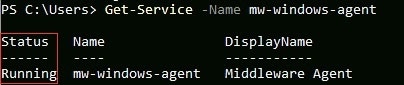
Verify the Infra Agent has been successfully installed with the following command:
```shell Shell theme={null}
Get-Service -Name mw-windows-agent
```
The `mw-windows-agent` should be in `Running` status
#### Powershell
Verify the Infra Agent has been successfully installed with the following command:
```shell Shell theme={null}
Get-Service -Name mw-windows-agent
```
The `mw-windows-agent` should be in `Running` status
 # Troubleshooting
Run only one Infra Agent per host. Multiple agents will cause unexpected behavior.
Once the Infra Agent is installed, metrics should begin appearing in your Middleware Account within a few minutes. If metrics do not appear, ensure that the machine has access to the internet, either directly or through a proxy, and that only one MW Agent is running per server instance.
# Uninstall
To uninstall the Infra Agent on a Windows machine, follow these steps.
1. Access Settings in the Windows Launcher and go to Apps section.
2. Under Apps & Features, locate Infra Agent and Click on Uninstall.
3. Follow the prompts to uninstall Infra Agent.
Need assistance or want to learn more about Middleware? Contact us at support\[at]middleware.io.
# Troubleshooting
Run only one Infra Agent per host. Multiple agents will cause unexpected behavior.
Once the Infra Agent is installed, metrics should begin appearing in your Middleware Account within a few minutes. If metrics do not appear, ensure that the machine has access to the internet, either directly or through a proxy, and that only one MW Agent is running per server instance.
# Uninstall
To uninstall the Infra Agent on a Windows machine, follow these steps.
1. Access Settings in the Windows Launcher and go to Apps section.
2. Under Apps & Features, locate Infra Agent and Click on Uninstall.
3. Follow the prompts to uninstall Infra Agent.
Need assistance or want to learn more about Middleware? Contact us at support\[at]middleware.io.