> ## Documentation Index
> Fetch the complete documentation index at: https://mw-docs.middleware.io/llms.txt
> Use this file to discover all available pages before exploring further.
# PHP
> PHP APM - Setup & Installation Docs | Middleware
| Traces | Metrics | App Logs | Custom Logs | Profiling |
| :----: | :-----: | :------: | :---------: | :-------: |
| ✅ | ✖️ | ✖️ | ✅ | ✖️ |
This guide walks you through setting up Application Performance Monitoring (APM) on a PHP application. These instructions can also be found on the Installation page in your Middleware Account. View example code [here](https://github.com/middleware-labs/demo-apm/tree/master/php).
The Laravel and CakePHP web frameworks are not currently supported by the PHP APM.
# Prerequisites
Infrastructure Agent (Infra Agent). To install the Infra Agent, see our [Installation Guide](https://docs.middleware.io/docs/agent-installation/overview).
`PHP version 8.2` or above. Check your PHP version with the following command:
```shell Shell theme={null}
php -v
```
# Install
### Step 1: Install `PHP` Extensions
#### Step 1a: Install Pecl & Composer
* [Pecl](https://pecl.php.net/) Installation
* [Composer](https://getcomposer.org/) Installation
#### Step 1b: Install `otel-instrumentation`
```bash Shell theme={null}
sudo pecl install channel://pecl.php.net/opentelemetry-1.0.0beta3
```
#### Step 1c: Add Extension to `php.ini` File
```php php theme={null}
[opentelemetry]
extension=opentelemetry.so
```
The `php.ini` file can be found using the following commands based on your Linux distribution:
```bash Ubuntu/Debian theme={null}
sudo nano /etc/php//cli/php.ini
```
```bash CentOS/RHEL theme={null}
sudo nano /etc/php.ini
```
```bash Arch Linux theme={null}
sudo nano /etc/php/php.ini
```
```bash Web-Serve theme={null}
sudo nano /etc/php//apache2/php.ini
```
#### Step 1d: Verify Installation
Verify the extension is installed and enabled.
```bash Shell theme={null}
php -m | grep opentelemetry
```
### Step 2: Install `PHP` APM Package
Ensure you have a PHP project set up and a `composer.json` file in your project’s root directory.
If you do not have a `composer.json` file already created, create one using using the `composer init` command.
To install the Middleware APM package, run the following command:
```bash Shell theme={null}
composer update
composer require middleware/agent-apm-php
```
### Step 3: Import Tracker
Add following code to the beginning of your project:
```php PHP theme={null}
require 'vendor/autoload.php';
use Middleware\AgentApmPhp\MwTracker;
```
### Step 4: Container Variables
#### Docker
Applications running in a container require an additional environment variable. If your application is not running in a container, move to Step 5.
For Docker containers, add the following environment variable to your application.
```bash Shell theme={null}
MW_AGENT_SERVICE=
```
The `DOCKER_BRIDGE_GATEWAY_ADDRESS` is the IP address of the gateway between the Docker host and bridge network. This is `172.17.0.1` by default.
Learn more about Docker bridge networking [here](https://docs.docker.com/network/network-tutorial-standalone/)
#### Kubernetes
```bash Shell theme={null}
kubectl get service --all-namespaces | grep mw-service
```
Then add the following environment variable to your application deployment YAML file.
```bash Shell theme={null}
MW_AGENT_SERVICE=mw-service.mw-agent-ns.svc.cluster.local
```
### Step 5: Implement APM Collector
Start a tracing scope at the beginning of your code.
```php PHP theme={null}
$tracker = new MwTracker('', '');
$tracker->preTrack();
```
Define hooks with class and function names beneath the tracing scope.
```php Shell theme={null}
$tracker->registerHook('', '', [
'custom.attr1' => 'value1',
'custom.attr2' => 'value2',
]);
$tracker->registerHook('', '');
```
End the tracing scope after your code.
```php PHP theme={null}
$tracker->postTrack();
```
### Step 6: Enable Logging
To ingest custom logs, utilize the following functions based on desired log severity levels.
```php PHP theme={null}
$tracker->warn("this is warning log.");
$tracker->error("this is error log.");
$tracker->info("this is info log.");
$tracker->debug("this is debug log.");
```
# Troubleshooting
Below we cover a few common errors and their solutions.
### `pecl: command not found error`
If you receive a `pecl: command not found error`, run the following command:
```bash Shell theme={null}
sudo apt-get update
apt-get install php-pear php8.1-dev
```
### Broken Dependency Issue
If you receive any broken dependency issues, including errors like `libpcre2-dev : Depends: libpcre2-8-0 / libpcre2-16-0 / libpcre2-32-0`, run the following command:
```bash Shell theme={null}
sudo apt --fix-broken install
```
### `ERROR: ‘phpize’ failed error`
If you receive an `ERROR: ‘phpize’ failed error`, run the following commands:
```bash Shell theme={null}
sudo apt-get update
sudo apt-get install php8.1-dev
sudo apt-get update
sudo pecl channel-update pecl.php.net
```
# Azure Pipelines
The Azure Pipelines continuous integration and continuous delivery (CI/CD) infrastructure helps you build, deploy, and test your PHP projects. For information on setting up your PHP project with Azure Pipelines and Azure DevOps Services, learn more [here](https://learn.microsoft.com/en-us/azure/devops/pipelines/ecosystems/php?view=azure-devops).
### Step 1: Configure OpenTelemetry Extension
Add the following code to your `.ini` file located in the `/home/html/ini` directory of your Azure account:
```otel OpenTelemetry Extension theme={null}
extension=opentelemetry.so
```
### Step 2: Add Configuration to Azure
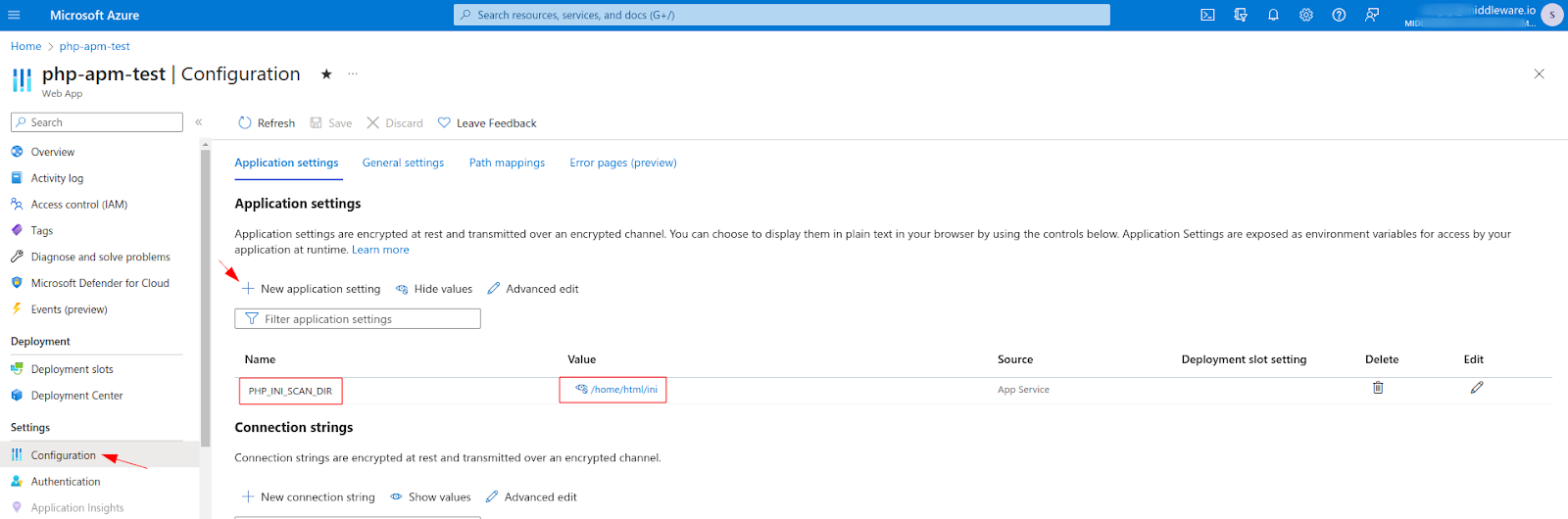
Navigate to Application Settings in your Azure PHP project account and select `New application setting`. Add the following Name and Value to the `New application setting`:
```
Name: PHP_INI_SCAN_DIR
Value: /home/html/ini
```
Your configuration should look like the following:
### Step 3: Create Your Build Pipelines
Update your build pipeline by adding the following code to the `azure-pipelines.yml` file:
The below build pipeline includes installation steps for `Opentelemetry` and the `middleware/agent-apm-php`
```yaml YAML theme={null}
trigger:
- master
variables:
# Azure Resource Manager connection created during pipeline creation
azureSubscription: 'XXXXXXXXXXXXXXXXXXXX'
# Web app name
webAppName: 'php-apm-test'
# Agent VM image name
vmImageName: 'ubuntu-latest'
# Environment name
environmentName: 'php-apm-test'
# Root folder under which your composer.json file is available.
rootFolder: $(System.DefaultWorkingDirectory)
stages:
- stage: Build
displayName: Build stage
variables:
phpVersion: '8.2'
jobs:
- job: BuildJob
pool:
name: Default
vmImage: $(vmImageName)
steps:
- script: |
sudo update-alternatives --set php /usr/bin/php$(phpVersion)
sudo update-alternatives --set phar /usr/bin/phar$(phpVersion)
sudo update-alternatives --set phpdbg /usr/bin/phpdbg$(phpVersion)
sudo update-alternatives --set php-cgi /usr/bin/php-cgi$(phpVersion)
sudo update-alternatives --set phar.phar /usr/bin/phar.phar$(phpVersion)
php -version
workingDirectory: $(rootFolder)
displayName: 'Use PHP version $(phpVersion)'
- script: composer install --no-interaction --prefer-dist --ignore-platform-reqs
workingDirectory: $(rootFolder)
displayName: 'composer install'
- script: |
# Check if the Opentelemetry package is already installed
if [ "$(pecl list | grep opentelemetry)" ]; then
echo "Opentelemetry package is already installed. Skipping this installation."
else
sudo pecl install channel://pecl.php.net/opentelemetry-1.0.0beta3
fi
workingDirectory: $(rootFolder)
displayName: 'Install Opentelemetry Extension'
- script: |
# Check if the Opentelemetry package is enabled
if php -m | grep opentelemetry; then
echo "Opentelemetry extension is enabled."
else
echo "Opentelemetry extension is not enabled. Please add it to your php.ini file: extension=opentelemetry.so"
exit 1
fi
workingDirectory: $(rootFolder)
displayName: 'Verify Opentelemetry Extension'
- script: composer update
workingDirectory: $(rootFolder)
displayName: 'Update Composer'
- script: |
# Check if the Middleware PHP APM-Package is already listed in the composer
if composer show | grep middleware/agent-apm-php; then
echo "Middleware APM-Package is already listed in the composer file. Skipping this installation."
else
composer require middleware/agent-apm-php
fi
workingDirectory: $(rootFolder)
displayName: 'Install Middleware PHP APM-Package'
- task: ArchiveFiles@2
displayName: 'Archive files'
inputs:
rootFolderOrFile: '$(System.DefaultWorkingDirectory)'
includeRootFolder: false
archiveType: zip
archiveFile: $(Build.ArtifactStagingDirectory)/$(Build.BuildId).zip
replaceExistingArchive: true
- task: PublishBuildArtifacts@1
inputs:
PathtoPublish: '$(Build.ArtifactStagingDirectory)'
ArtifactName: 'drop'
publishLocation: 'Container'
```
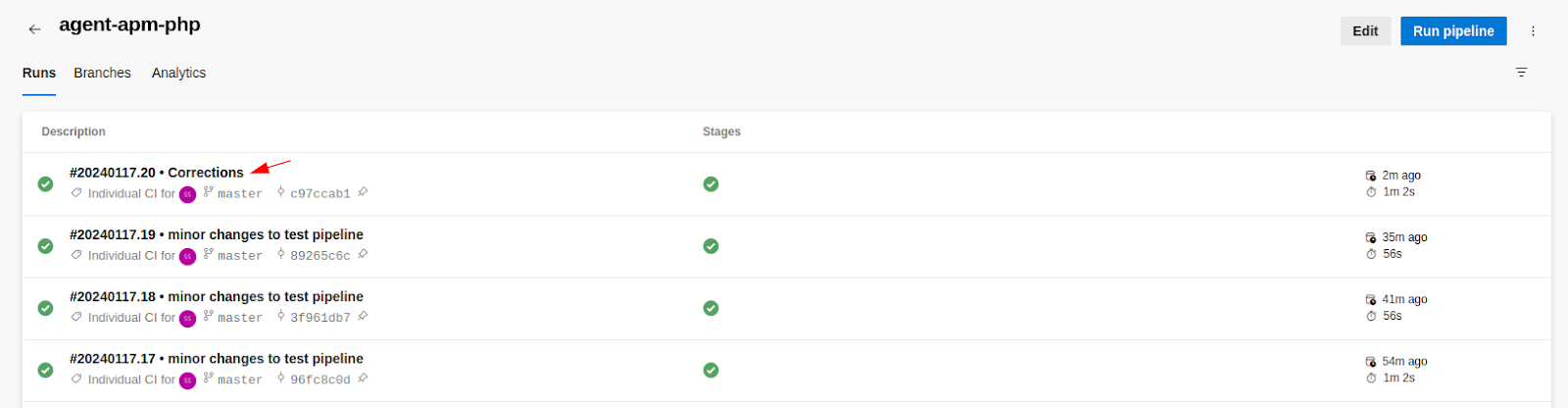
### Step 4: Check Your Pipeline
The PHP Agent is now set up to execute a CI/CD approach, following the build pipeline configuration, whenever new code is pushed to the production environment.
Your output should look like the following:
# Continuous Profiling
Continuous profiling captures real-time performance insights from your application to enable rapid identification of resource allocation, bottlenecks, and more.
Continuous Profiling for the Cloudflare APM is not yet available; reach out to our support team if you'd like more information. Navigate to the [Continuous Profiling](https://docs.middleware.io/workflow/profiling#continuous-profiling) section to learn more about using Continuous Profiling with our other APMs.
Need assistance or want to learn more about Middleware? Contact us at support\[at]middleware.io.