> ## Documentation Index
> Fetch the complete documentation index at: https://mw-docs.middleware.io/llms.txt
> Use this file to discover all available pages before exploring further.
# Jira
> Jira Integration - Setup & Installation Docs | Middleware
Integrate Jira with Middleware to create a ticket in jira for alerts. With this integration, the ticket will be created in your preferred jira board with alert details.
# Prerequisites
Middleware Account with `admin` level access
Jira Account with `admin` level access
# Setup
Follow these steps to set up Jira integration with Middleware account.
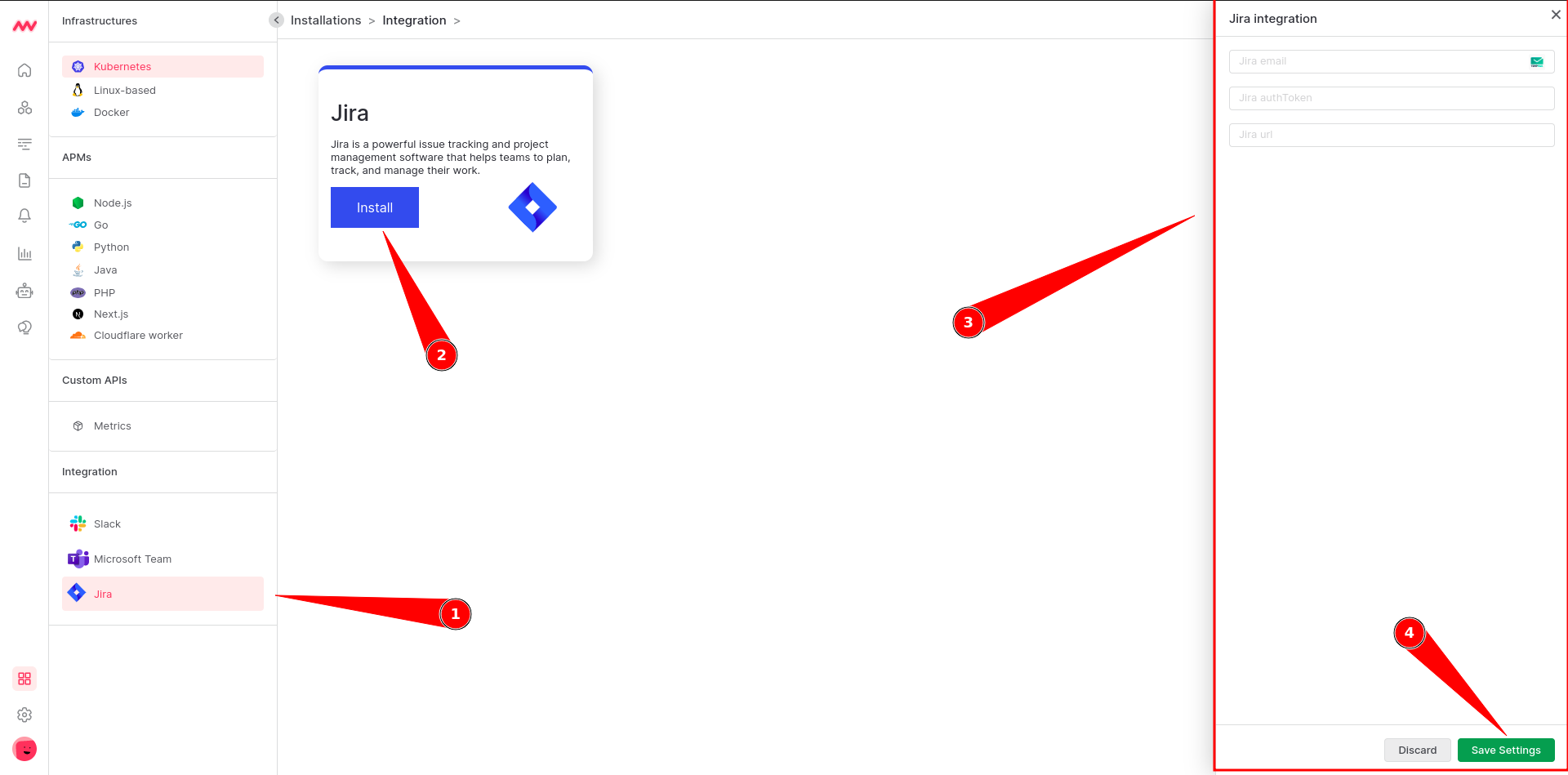
* Login to the Middleware account and navigate to the Jira integration under the installation section.
Login -> Installations -> Integrations -> Jira
* Click on the "Install" button to begin the integration process.
* You will see a new window pop up on the right side of your screen.
* In that window, add the Jira URL, Jira authentication details, and your email address, and click on the save button.
* It will integrate your jira account with Middleware.
 # Assign alert to jira ticket
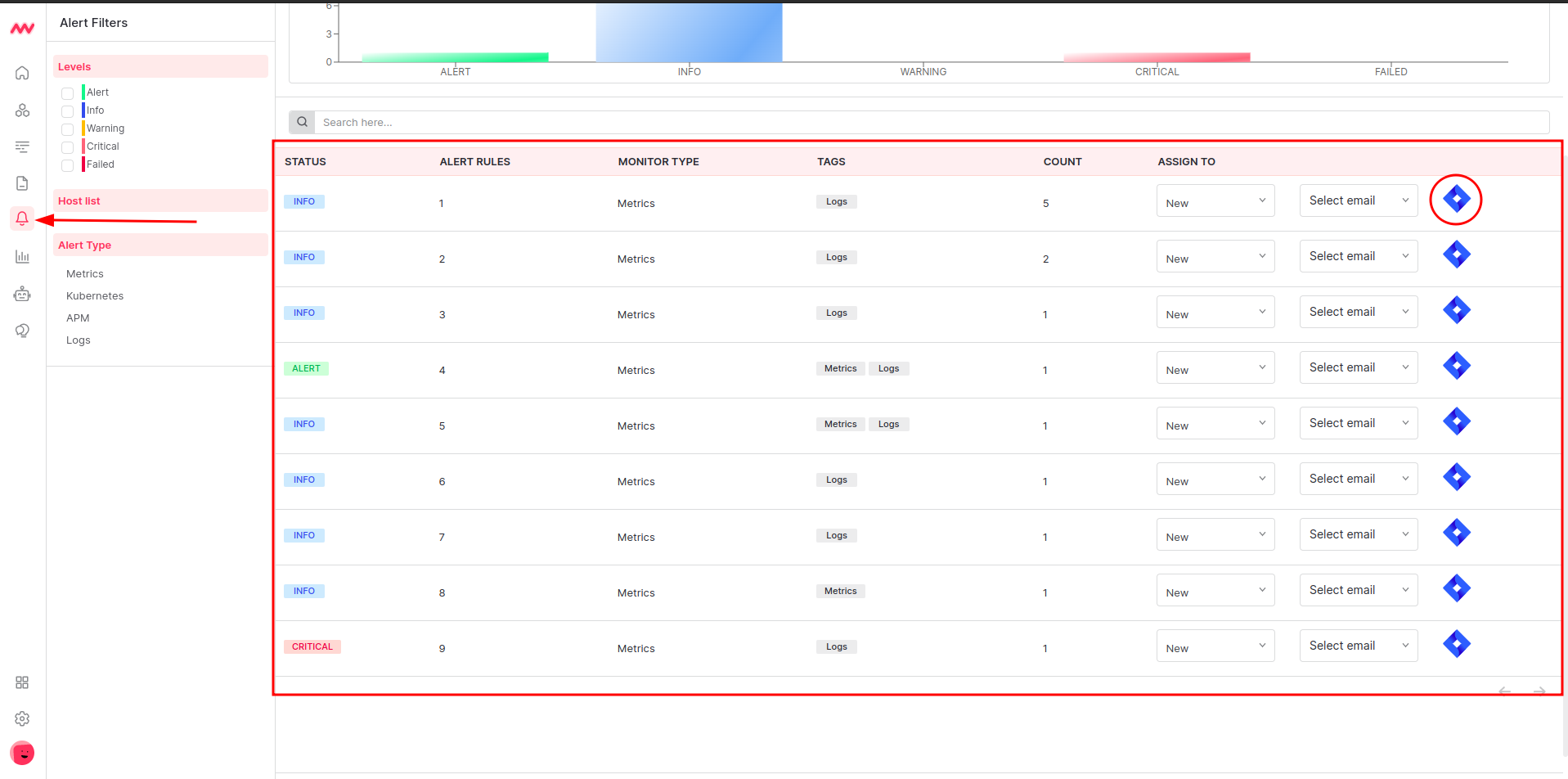
* Navigate to alerts from the left menu.
* To assign an alert to a team member, click on the Jira symbol for that alert.
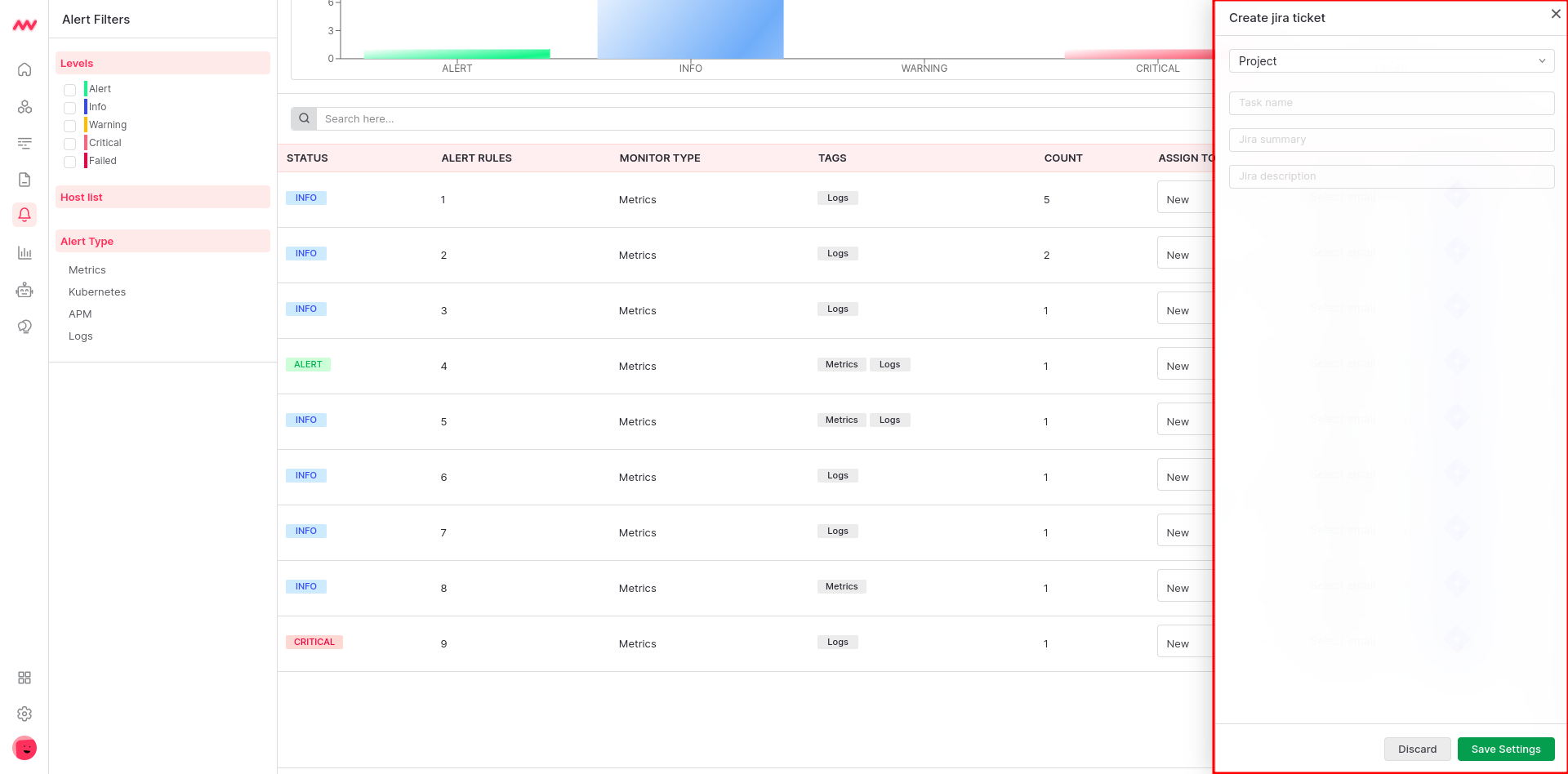
* It will open a dialog box on the right side where you need to select the project name of jira and add details like task name, task summary, and task description.
* Click on the save button and a jira issue will be created in the project which you have selected with the details.
# Assign alert to jira ticket
* Navigate to alerts from the left menu.
* To assign an alert to a team member, click on the Jira symbol for that alert.
* It will open a dialog box on the right side where you need to select the project name of jira and add details like task name, task summary, and task description.
* Click on the save button and a jira issue will be created in the project which you have selected with the details.
 # Troubleshooting
If you do not see the Integrations Menu in Middlware, that means your account has not been granted `Installation` permissions. Contact your system administrator to add the `Installation` permission to your user role in Settings.
# Next Steps
* [How to Create Alerts](https://docs.middleware.io/workflow/alerting/setup-alert)
* [Dashboard Basics & Customization](https://docs.middleware.io/workflow/custom-dashboard/dashboard-builder-overview)
* [Getting Started With Real User Monitoring (RUM)](https://docs.middleware.io/rum/rum-overview)
Need assistance or want to learn more about Middleware? Contact us at support\[at]middleware.io.
# Troubleshooting
If you do not see the Integrations Menu in Middlware, that means your account has not been granted `Installation` permissions. Contact your system administrator to add the `Installation` permission to your user role in Settings.
# Next Steps
* [How to Create Alerts](https://docs.middleware.io/workflow/alerting/setup-alert)
* [Dashboard Basics & Customization](https://docs.middleware.io/workflow/custom-dashboard/dashboard-builder-overview)
* [Getting Started With Real User Monitoring (RUM)](https://docs.middleware.io/rum/rum-overview)
Need assistance or want to learn more about Middleware? Contact us at support\[at]middleware.io.