> ## Documentation Index
> Fetch the complete documentation index at: https://mw-docs.middleware.io/llms.txt
> Use this file to discover all available pages before exploring further.
# Microsoft Teams
> Microsoft Teams Integration - Setup & Installation Docs | Middleware
The Microsoft Teams Integration allows users to configure and send custom alerts within Middleware to any public or private Teams channel. This integration is useful for collaborating in real-time within Teams based on alerts triggered by Middleware. This process ensures that your team can quickly respond to critical alerts without leaving the Teams application.
The Microsoft Teams Integration works by directly connecting your Microsoft Teams account with Middleware. This allows Middleware to access the Microsoft Teams API and dispatch direct messages to Teams channels whenever an alert is triggered.
# Prerequisites
Middleware Account with `admin` level access
Microsoft Teams Account with `admin` level access
# Setup
* Login to Middleware account and navigate to the MS Team integration under installation section. Login -> Installations -> Integrations -> Microsoft Team
* Click on the "Install" button to begin the integration process.
* You will be redirected to the Microsoft Teams integration page. Here, you must allow the alert module to access your Microsoft Teams account and channel list. This will enable the module to send notifications to the appropriate channel(s).
* Once you have been granted access to the alert module,Ms team will be connected to your Middleware accout.
* Create the alert based on your specific needs using the provided options.
# Configure alert on MS team
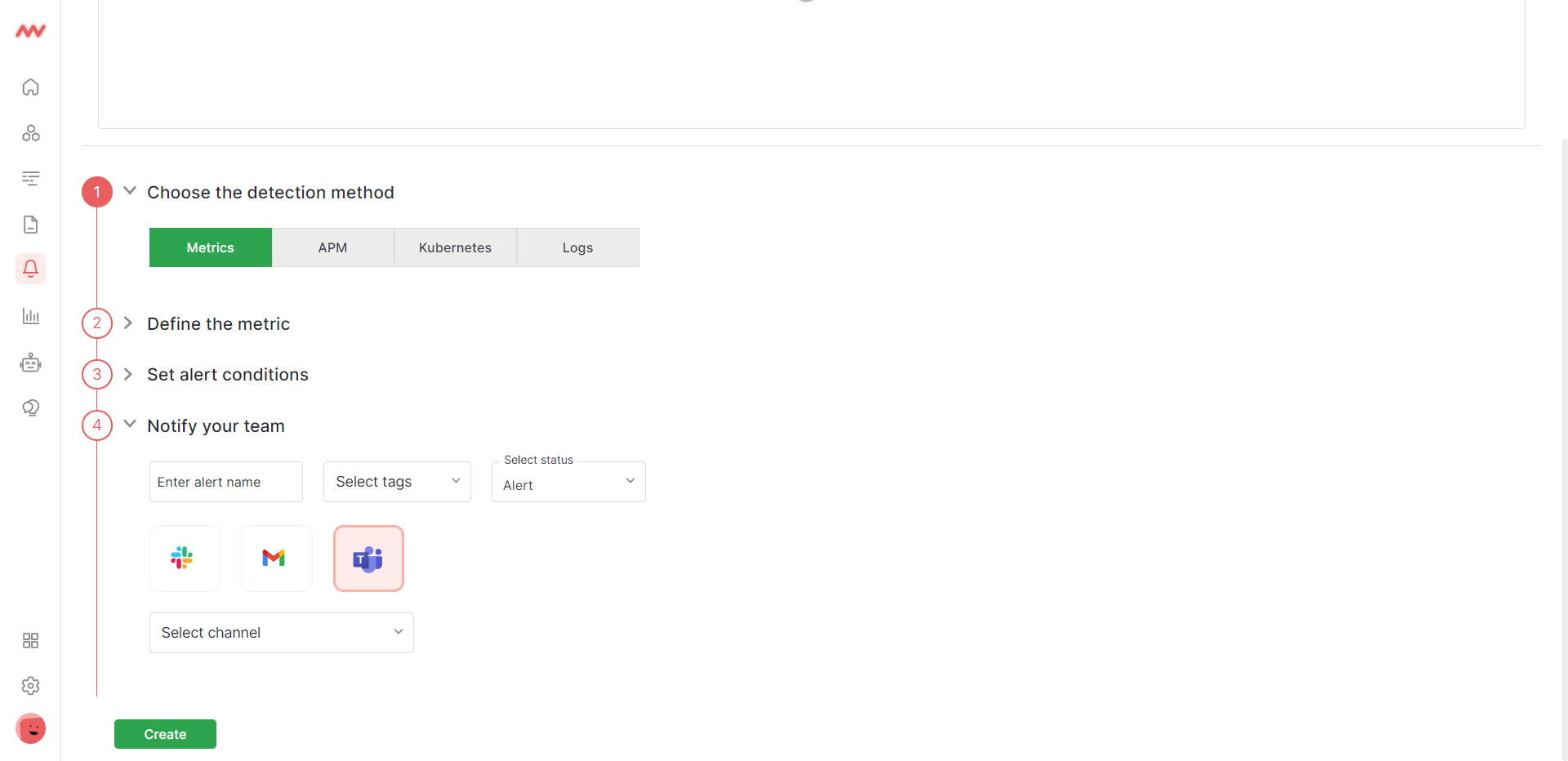
* Navigate to alerts from the left menu.
* Alerts -> Rules -> create new ->Notify your team
In the "Notify your team", select the Microsoft Team channel where you want to receive the notification. This could be a channel you have created specifically for monitoring and alerts or an existing channel where your team members are already collaborating.
 # Troubleshooting
If you do not see the Integrations Menu in Middlware, that means your account has not been granted `Installation` permissions. Contact your system administrator to add the `Installation` permission to your user role in Settings.
# Next Steps
* [How to Create Alerts](https://docs.middleware.io/workflow/alerting/setup-alert)
* [Dashboard Basics & Customization](https://docs.middleware.io/workflow/custom-dashboard/dashboard-builder-overview)
* [Getting Started With Real User Monitoring (RUM)](https://docs.middleware.io/rum/rum-overview)
Need assistance or want to learn more about Middleware? Contact us at support\[at]middleware.io.
# Troubleshooting
If you do not see the Integrations Menu in Middlware, that means your account has not been granted `Installation` permissions. Contact your system administrator to add the `Installation` permission to your user role in Settings.
# Next Steps
* [How to Create Alerts](https://docs.middleware.io/workflow/alerting/setup-alert)
* [Dashboard Basics & Customization](https://docs.middleware.io/workflow/custom-dashboard/dashboard-builder-overview)
* [Getting Started With Real User Monitoring (RUM)](https://docs.middleware.io/rum/rum-overview)
Need assistance or want to learn more about Middleware? Contact us at support\[at]middleware.io.