> ## Documentation Index
> Fetch the complete documentation index at: https://mw-docs.middleware.io/llms.txt
> Use this file to discover all available pages before exploring further.
# Slack
> Slack Integration - Setup & Installation Docs | Middleware
Integrate slack with Middleware to get alert notifications on your slack channels. With this integration, you can customize alerts and get notifications in any channel or thread on your slack.
# Prerequisites
Middleware Account with `admin` level access
Slack Account with `admin` level access
# Setup
Follow these steps to set up slack integration with middleware account
1. Login to your Middleware account and navigate to the slack integration
2. Connect Slack to Middleware and allow permissions
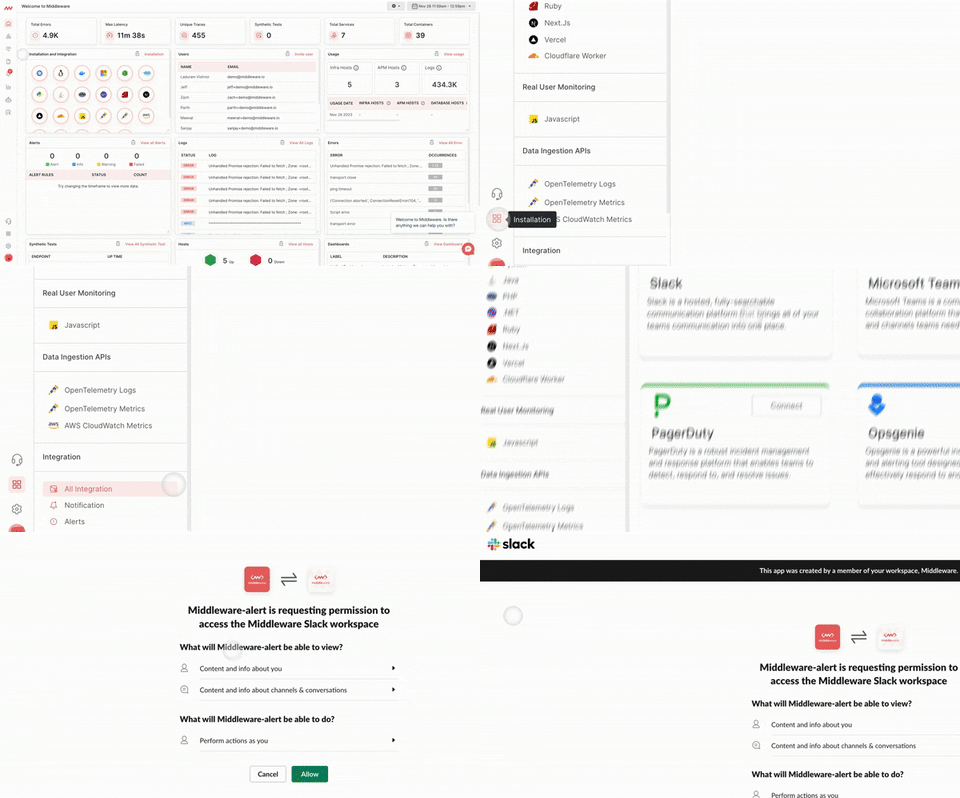 Once you have completed the integration, log back into your Middleware account and navigate to the integrations section to check if the installation is complete.
# Configure alerts on slack channel
After integrating Slack, proceed with the following steps to configure alert notifications in Slack.
1. Navigate to alerts from the left menu.
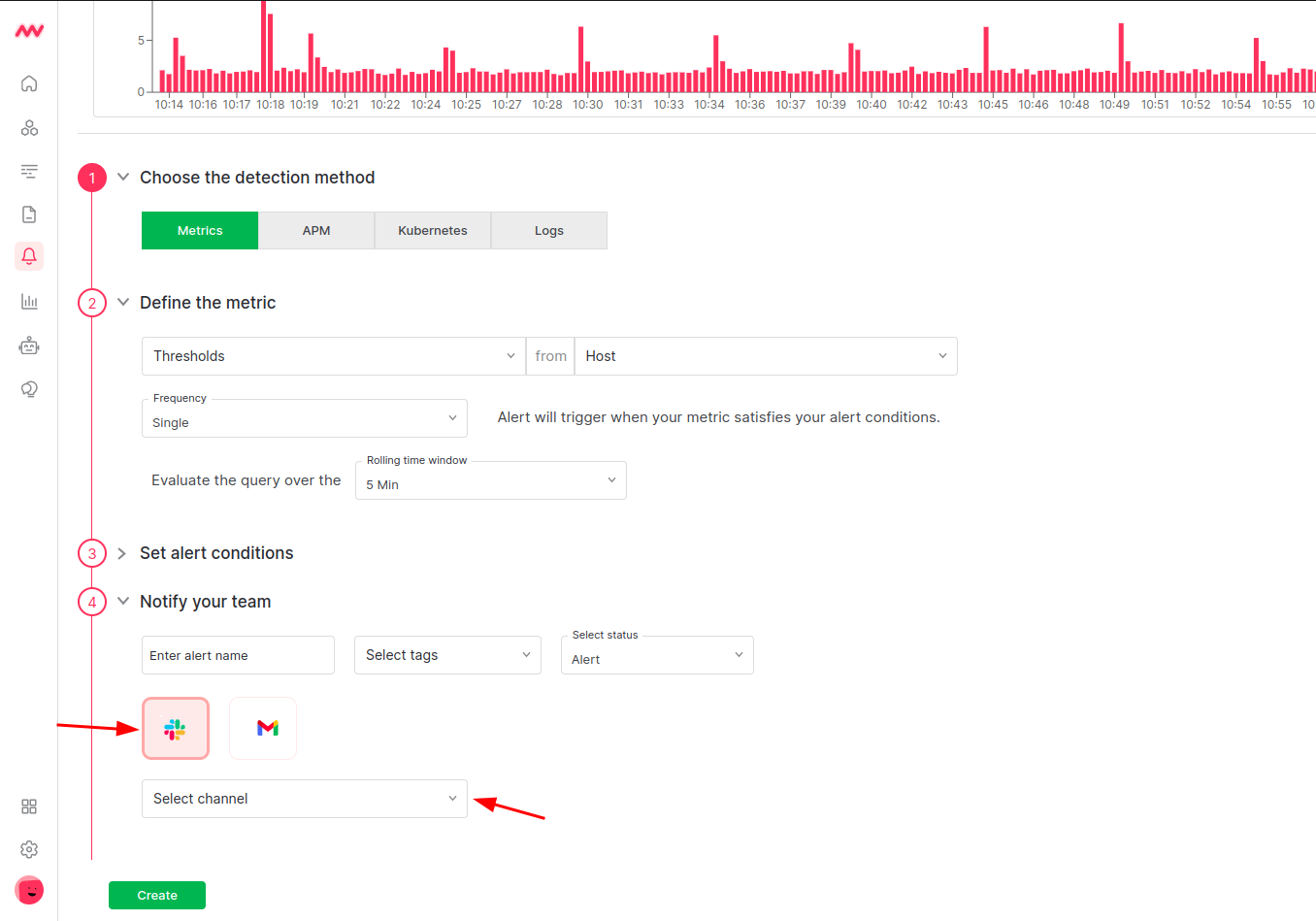
2. Alerts -> Rules -> create new ->Notify your team\\
In the "Notify your team", select the Slack channel where you want to receive the notification. This could be a channel you have created specifically for monitoring and alerts or an existing channel where your team members are already collaborating.\\
Once you have completed the integration, log back into your Middleware account and navigate to the integrations section to check if the installation is complete.
# Configure alerts on slack channel
After integrating Slack, proceed with the following steps to configure alert notifications in Slack.
1. Navigate to alerts from the left menu.
2. Alerts -> Rules -> create new ->Notify your team\\
In the "Notify your team", select the Slack channel where you want to receive the notification. This could be a channel you have created specifically for monitoring and alerts or an existing channel where your team members are already collaborating.\\
 # Troubleshooting
If you do not see the Integrations Menu in Middlware, that means your account has not been granted `Installation` permissions. Contact your system administrator to add the `Installation` permission to your user role in Settings.
# Next Steps
* [How to Create Alerts](https://docs.middleware.io/workflow/alerting/setup-alert)
* [Dashboard Basics & Customization](https://docs.middleware.io/workflow/custom-dashboard/dashboard-builder-overview)
* [Getting Started With Real User Monitoring (RUM)](https://docs.middleware.io/rum/rum-overview)
Need assistance or want to learn more about Middleware? Contact us at support\[at]middleware.io.
# Troubleshooting
If you do not see the Integrations Menu in Middlware, that means your account has not been granted `Installation` permissions. Contact your system administrator to add the `Installation` permission to your user role in Settings.
# Next Steps
* [How to Create Alerts](https://docs.middleware.io/workflow/alerting/setup-alert)
* [Dashboard Basics & Customization](https://docs.middleware.io/workflow/custom-dashboard/dashboard-builder-overview)
* [Getting Started With Real User Monitoring (RUM)](https://docs.middleware.io/rum/rum-overview)
Need assistance or want to learn more about Middleware? Contact us at support\[at]middleware.io.