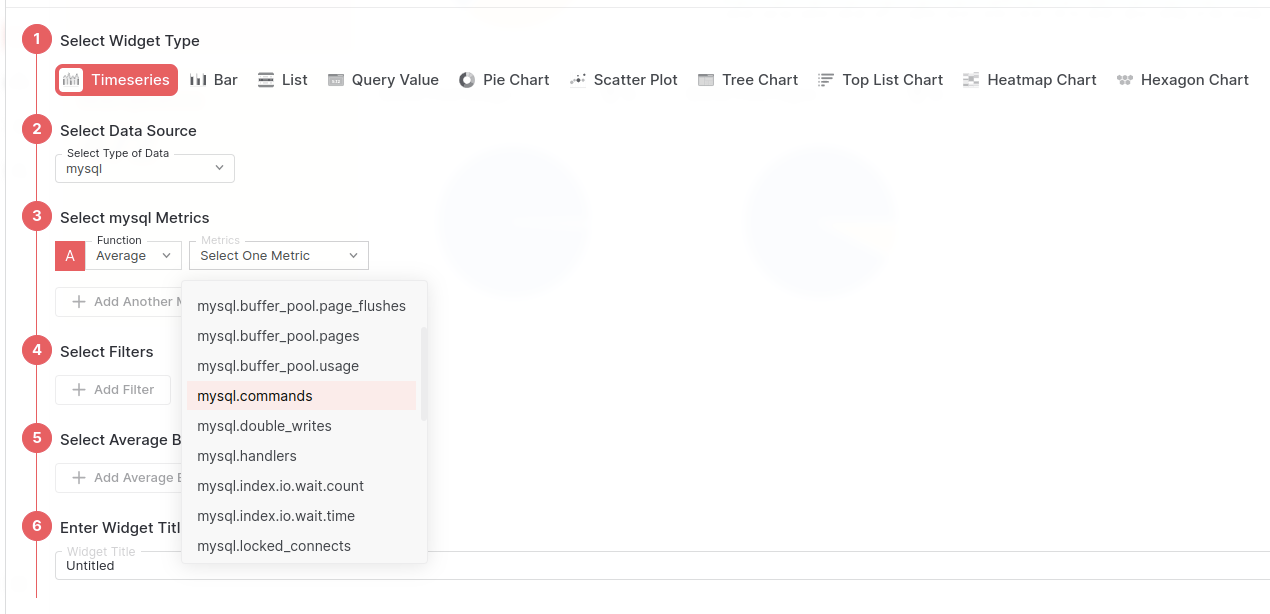
mysql.buffer_pool.pages | Number of pages in the InnoDB buffer pool |
mysql.buffer_pool.data_pages | Number of data pages in the InnoDB buffer pool |
mysql.buffer_pool.page_flushes | Number of requests to flush pages from the InnoDB buffer pool |
mysql.buffer_pool.operations | Number of operations on the InnoDB buffer pool |
mysql.buffer_pool.limit | Configured size of the InnoDB buffer pool |
mysql.buffer_pool.usage | Number of bytes in the InnoDB buffer pool |
mysql.commands | Count of commands executed, per command type |
mysql.prepared_statements | Count of prepared statements executed, per statement type |
mysql.handlers | Number of requests to MySQL handlers |
mysql.double_writes | Number of writes to the InnoDB doublewrite buffer |
mysql.log_operations | Number of InnoDB log operations |
mysql.operations | Number of InnoDB operations |
mysql.page_operations | Number of InnoDB page operations |
mysql.table.io.wait.count | Total count of I/O wait events for a table |
mysql.table.io.wait.time | Total time of I/O wait events for a table |
mysql.index.io.wait.count | Total count of I/O wait events for an index |
mysql.index.io.wait.time | Total time of I/O wait events for an index |
mysql.row_locks | Number of InnoDB row blocks |
mysql.row_operations | Number of InnoDB row operations |
mysql.locks | Number of MySQL locks |
mysql.sorts | Number of MySQL sorts |
mysql.threads | State of MySQL threads |
mysql.locked_connects | Number of attempts to connect to locked user accounts |
mysql.opened_resources | Number of opened resources |
mysql.mysqlx_connections | Number of mysqlx connections |
mysql.tmp_resources | Number of created temporary resources |
mysql.table.lock_wait.read.count | Count of lock wait read events |
mysql.table.lock_wait.read.time | Total lock wait read event time |
mysql.table.lock_wait.write.count | Count of lock wait write events |
mysql.table.lock_wait.write.time | Total lock wait write event time |
mysql.locked_connects | Number of attempts to connect to locked user accounts |
mysql.connection.count | Total number of connection attempts to the MySQL server (includes successful and unsuccessful attempts) |
mysql.connection.errors | Client connection process errors |
mysql.mysqlx_connections | Number of mysqlx connections |
mysql.joins | Number of joins that perform table scans |
mysql.replica.time_behind_source | Actual replica delay, in seconds |
mysql.replica.sql_delay | Configured replica delay, in seconds |
mysql.statement_event.count | Count of statement events |
mysql.statement_event.wait.time | Total wait time of summarized timed events |
mysql.mysqlx_worker_threads | Number of worker threads available |
mysql.table_open_cache | Total number of hits, misses, and overflows for open table cache lookups |
mysql.query.client.count | Number of client statements executed by the server |
mysql.query.count | Total number of statements executed by the server |
mysql.query.slow.count | Number of slow queries |
mysql.statement_event.count | Summary of current and recent statement events |
mysql.statement_event.wait.time | The total wait time of the summarized timed events |
mysql.statement_event.count_stars | The total count of executed queries per normalized query and schema |
mysql.innodb.buffer_pool_pages_flushed | Rate of pages being flushed from the InnoDB buffer pool |
mysql.innodb.buffer_pool_read_requests | Rate of read requests made to the InnoDB buffer pool |
mysql.innodb.os_file_reads | Rate at which files are read by InnoDB |
mysql.innodb.data_read | Rate at which data is read from disk by InnoDB |
mysql.innodb.dblwr_pages_written | Rate of pages written to the doublewrite buffer to prevent partial page writes |
mysql.innodb.ibuf_merged_delete_marks | Rate of delete marks merged from the insert buffer to the buffer pool |
mysql.innodb.ibuf_merged_deletes | Rate of delete operations merged from the insert buffer |
mysql.innodb.os_log_written | Total bytes written to the log by InnoDB |
mysql.innodb.row_lock_waits | Rate at which operations wait for row locks, indicative of contention on row-level data |
mysql.innodb.buffer_pool_reads | Rate of read operations that required actual disk I/O in the InnoDB buffer pool |
mysql.innodb.dblwr_writes | Rate of operations writing to the doublewrite buffer |
mysql.innodb.s_lock_os_waits | Rate at which OS waits for shared locks occur |
mysql.innodb.s_lock_spin_waits | Rate at which spin waits for shared locks occur |
mysql.innodb.rows_deleted | Rate at which rows are being deleted in InnoDB |
mysql.innodb.mutex_os_waits | Rate at which InnoDB operations need to wait for operating system level mutexes |
mysql.innodb.row_lock_time | Total time spent waiting for row locks by operations in InnoDB |
mysql.innodb.buffer_pool_wait_free | Number of waits for a free page in the buffer pool |
mysql.innodb.data_fsyncs | Rate of fsync operations by InnoDB to disk |
mysql.innodb.lsn_flushed | Log sequence number of the last flushed log |
mysql.innodb.os_log_fsyncs | Rate at which fsync() operations are issued to the InnoDB log file |
mysql.innodb.rows_inserted | Rate at which rows are being inserted in InnoDB |
mysql.innodb.rows_read | Rate at which rows are being read in InnoDB |
mysql.innodb.x_lock_os_waits | Rate at which OS waits for exclusive locks occur |
mysql.innodb.x_lock_spin_rounds | Rate at which spin rounds for exclusive locks occur |
mysql.innodb.x_lock_spin_waits | Rate at which spin waits for exclusive locks occur |
mysql.innodb.pages_created | Rate at which pages are created by InnoDB |
mysql.innodb.data_reads | Rate of data read operations performed by InnoDB |
mysql.innodb.ibuf_merged | Rate at which records are merged from the insert buffer |
mysql.innodb.ibuf_merges | Rate of operations merging data from the insert buffer to the buffer pool |
mysql.innodb.log_writes | Rate of actual log writes |
mysql.innodb.os_file_fsyncs | Rate at which InnoDB performs fsync() operations on files |
mysql.innodb.pages_read | Rate at which pages are read by InnoDB |
mysql.innodb.s_lock_spin_rounds | Rate at which spin rounds for shared locks occur |
mysql.innodb.buffer_pool_write_requests | Rate of write requests to the InnoDB buffer pool |
mysql.innodb.lsn_current | Current log sequence number |
mysql.innodb.data_writes | Rate of data write operations performed by InnoDB |
mysql.innodb.buffer_pool_read_ahead | Rate of pages read into the buffer pool by read-ahead |
mysql.innodb.data_written | Rate at which data is written to disk by InnoDB |
mysql.innodb.lsn_last_checkpoint | Log sequence number of the last checkpoint |
mysql.innodb.mutex_spin_waits | Rate of mutex spin waits in InnoDB, indicating contention within internal data structures |
mysql.innodb.buffer_pool_read_ahead_evicted | Rate of pages read by read-ahead and then evicted without being accessed |
mysql.innodb.ibuf_merged_inserts | Rate of insert operations merged from the insert buffer |
mysql.innodb.os_file_writes | Rate at which files are written by InnoDB |
mysql.innodb.mutex_spin_rounds | Rate of spin rounds per mutex spin in InnoDB, showing the effort needed to acquire a mutex |
mysql.innodb.log_write_requests | Number of write requests made to the log |
mysql.innodb.pages_written | Rate at which pages are written by InnoDB |
mysql.innodb.lock_structs | Rate at which lock structures are being used or created |
mysql.innodb.log_waits | Number of waits due to log buffer being too small |
mysql.innodb.rows_updated | Rate at which rows are being updated in InnoDB |
mysql.innodb.mem_thread_hash | Memory used by InnoDB for thread hash |
mysql.innodb.locked_transactions | Number of transactions that have acquired locks |
mysql.innodb.mem_file_system | Memory used by InnoDB for file system data structures |
mysql.innodb.buffer_pool_data | Total number of bytes of data in the InnoDB buffer pool |
mysql.innodb.pending_ibuf_aio_reads | Number of pending insert buffer asynchronous I/O reads |
mysql.innodb.read_views | Number of ‘read view’ structures currently active; these are used to manage consistent read views |
mysql.innodb.buffer_pool_pages_dirty | Number of dirty pages in the InnoDB buffer pool |
mysql.innodb.buffer_pool_total | Total number of bytes within the InnoDB buffer pool |
mysql.innodb.active_transactions | Current number of active transactions in InnoDB |
mysql.innodb.data_pending_reads | Current number of pending read operations in InnoDB |
mysql.innodb.data_pending_writes | Current number of pending write operations in InnoDB |
mysql.innodb.pending_aio_sync_ios | Number of pending asynchronous I/O operations that need synchronization |
mysql.innodb.buffer_pool_free | Number of bytes currently free within the InnoDB buffer pool |
mysql.innodb.os_log_pending_fsyncs | Number of pending fsyncs for logs |
mysql.innodb.pending_normal_aio_reads | Number of pending normal asynchronous I/O read operations |
mysql.innodb.row_lock_current_waits | Current number of operations waiting for row locks in InnoDB |
mysql.innodb.ibuf_size | Total size of the insert buffer |
mysql.innodb.mem_adaptive_hash | Memory used by InnoDB for the adaptive hash index |
mysql.innodb.buffer_pool_dirty | Current number of bytes held in dirty pages in the InnoDB buffer pool |
mysql.innodb.buffer_pool_used | Number of bytes currently used within the InnoDB buffer pool |
mysql.innodb.locked_tables | Number of tables currently locked by InnoDB |
mysql.innodb.pending_aio_log_ios | Number of pending asynchronous I/O operations on the log |
mysql.innodb.pending_normal_aio_writes | Number of pending normal asynchronous I/O write operations. |
mysql.innodb.mem_page_hash | Memory used by InnoDB for page hash |
mysql.innodb.mem_lock_system | Memory used by InnoDB for lock system data structures |
mysql.innodb.mem_total | Total memory allocated to InnoDB |
mysql.innodb.queries_queued | Number of queries waiting to be processed by InnoDB |
mysql.innodb.semaphore_waits | Number of semaphore waits |
mysql.innodb.buffer_pool_pages_data | Number of data pages in the InnoDB buffer pool |
mysql.innodb.buffer_pool_utilization | Percentage of the InnoDB buffer pool currently being utilized |
mysql.innodb.hash_index_cells_total | Total number of cells in the adaptive hash index |
mysql.innodb.mem_additional_pool | Memory allocated to InnoDB’s additional pool |
mysql.innodb.mem_dictionary | Memory used by InnoDB for dictionary information |
mysql.innodb.pending_log_writes | Number of pending writes to the log file |
mysql.innodb.queries_inside | Number of queries currently being processed inside InnoDB |
mysql.innodb.tables_in_use | Number of tables currently in use by InnoDB |
mysql.innodb.ibuf_segment_size | Size of the segment available for the insert buffer |
mysql.innodb.pending_checkpoint_writes | Number of pending writes to establish a new checkpoint |
mysql.innodb.buffer_pool_read_ahead_rnd | Number of random read-aheads in the InnoDB buffer pool |
mysql.innodb.current_row_locks | Current number of row locks held by operations in InnoDB |
mysql.innodb.data_pending_fsyncs | Current number of pending fsync operations in InnoDB |
mysql.innodb.pending_buffer_pool_flushes | Number of pending buffer pool flush operations |
mysql.innodb.current_transactions | Current number of transactions happening in InnoDB |
mysql.innodb.semaphore_wait_time | Total wait time for semaphores |
mysql.innodb.history_list_length | Length of the history list, indicating the number of pages consumed by transactions not yet flushed |
mysql.innodb.ibuf_free_list | Number of pages in the insert buffer free list |
mysql.innodb.mem_recovery_system | Memory used by InnoDB for transaction recovery |
mysql.innodb.checkpoint_age | Age of the last checkpoint in InnoDB |
mysql.innodb.hash_index_cells_used | Number of used cells in the adaptive hash index |
mysql.innodb.os_log_pending_writes | Number of pending log writes |
mysql.innodb.buffer_pool_pages_free | Number of free pages in the InnoDB buffer pool |
mysql.innodb.pending_log_flushes | Number of pending flush operations for the log buffer |
mysql.innodb.buffer_pool_pages_total | Total number of pages in the InnoDB buffer pool |